Updating: Purchasing Fields
By Camille Amanda Mentzer on May 23, 2023
BeginnerSummary:
There are two ways to update Purchasing Fields:
- Manual Update
- Bulk Upload
Conditions:
- Here are the roles that require manual updating of Purchasing Fields, along with the corresponding fields they can update:
- Part/Product Editor
- Finance, Stock Take, or Inventory (Any of these three roles can manually update the Average Price)
- Purchasing Manager (to update the Replenish Field)
- Bulk Updating a Products need the roles of:
- Bulk Update (Reference Price can only be updated through Bulk Update)
- Finance, Stock Take, or Inventory (Any of these three roles can manually update the Average Price)
- Purchasing Manager (to update the Replenish Field)
- Product should not have an active Work Order.
Steps to take:
Manually: Updating Product Purchasing Fields
- Navigate to the side menu and click Inventory --> Products. The Product Item List table will be displayed with all ACTIVE Products.
- Select and open the Product to Update
- Manually select the Product by clicking the Item Code
- Use the the Search Bar to look for a specific Product and click the Item Code.
- Click the Edit button in the top bar menu.
- Confirm update Product by clicking OK
- If a Product is used in any active Work Orders, a Notification error will appear and Product won't be updated.
- Product is updated successfully if it is NOT used in any active Work Orders.
Bulk Upload: Updating Product Purchasing Fields
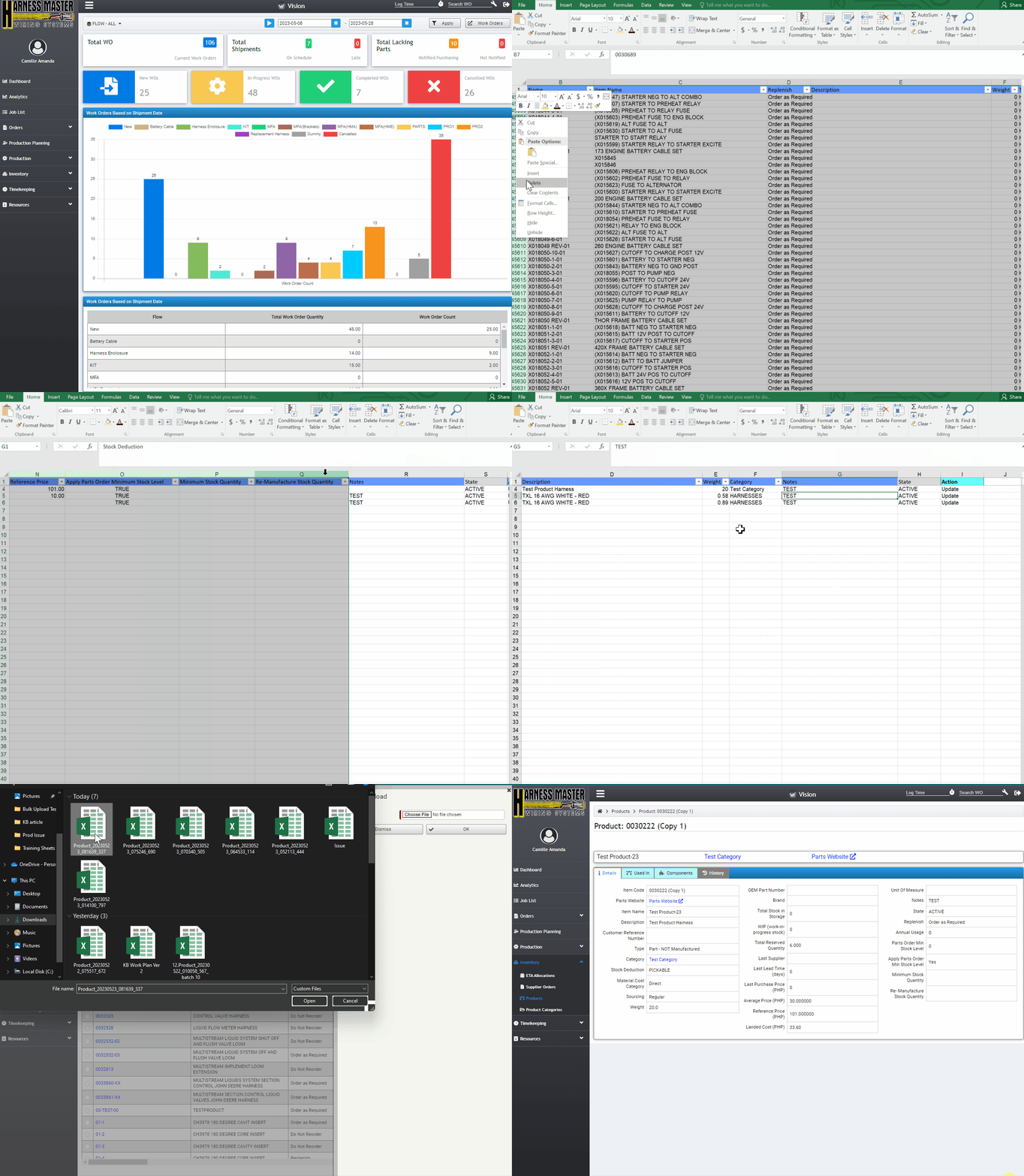
- Navigate to the side menu and click Inventory --> Products. The Product Item List table will be displayed with all ACTIVE Products.
- Click on Bulk Processing button and select Export Products. A confirmation will appear.
- Click Yes to export the file. After a few seconds a download confirmation popup will appear. click Save.
- Open the file and select the products and fill up the forms that needs to update (Purchasing Fields).
- Remove products and columns that do not need any changes in the list. Except for column A (UUID) and V (Action).
- After changing, Save the file.
- Go back to Inventory --> Products.
- Click the Bulk Processing dropdown and select the Upload Products
- A side window will appear Product: Upload
- Click the Choose File button select the file and click OK to upload.
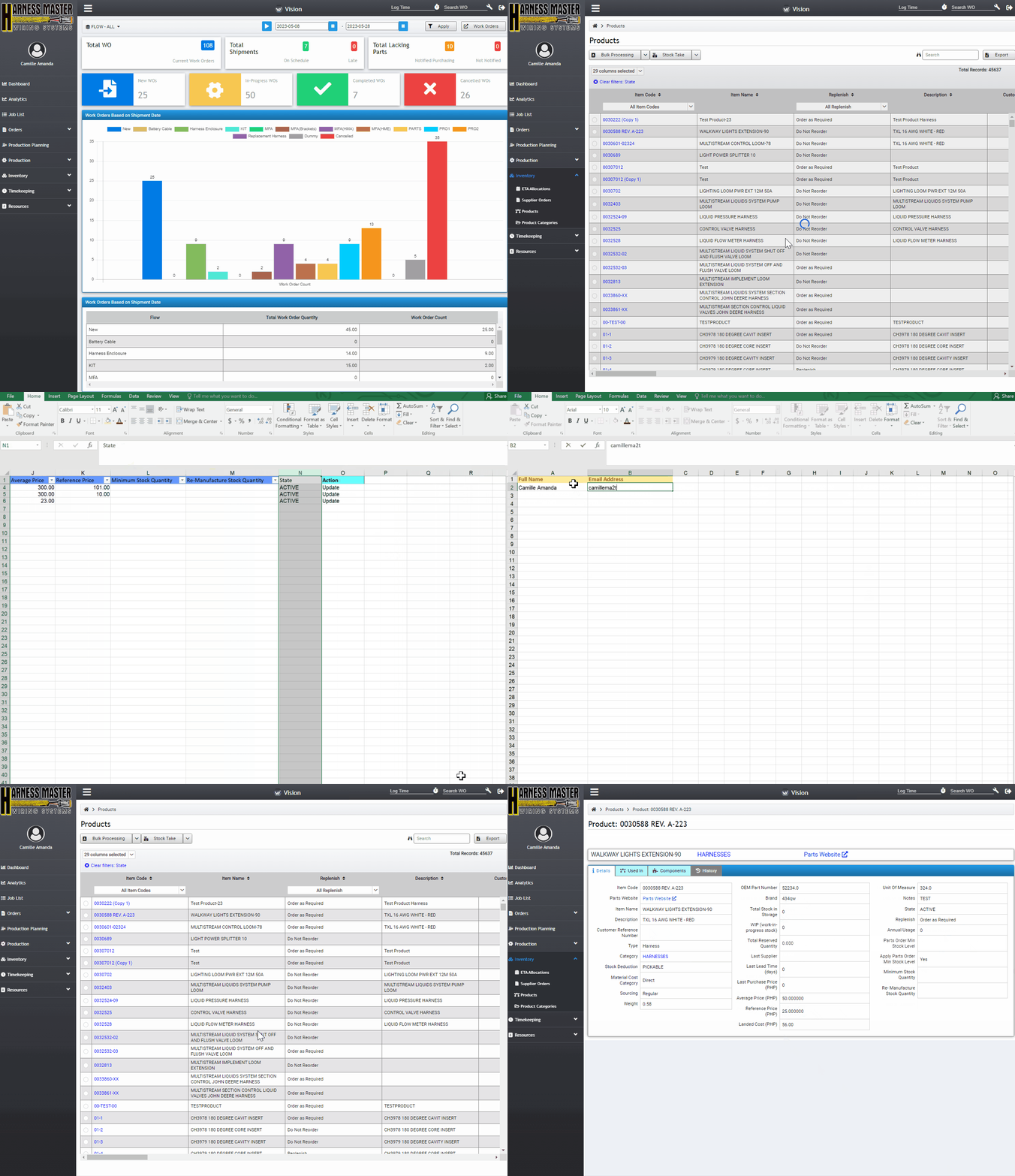
Note: In Recipient tab of the Upload file, add the names and email of recipients who should receive notification of Bulk Upload results once processing is completed.
For more questions, please contact hmwssupport@titusgt.com
Was this article helpful?
More articles on Harness Master Wiring System